FSM Startup Kit
Last updated: December 1, 2025
PREDEFINED ROLES AND THEIR RESPONSIBILITIES
1. Super Admin (Web and mobile)
2. Operation Manager (Web and mobile)
3. Account Executive (Web and mobile)
4. Service Technician (Web and mobile)
5. Project Coordinator (Web and mobile)
6. Service Contractor (Web and mobile)
7. Customer Head (Web and mobile)
STEPS TO START WITH INNOMAINT
PREDEFINED ROLES AND THEIR RESPONSIBILITIES
1. Super Admin (Web and mobile)
Super admin is an administrator who has all the privileges in the application by managing the entire configuration and transactions.
1. Can able to create, modify and delete all the data in the Innomaint application.
2. Manage all the assets & sub-assets with general details, documents, solution bank, additional information and asset Id.
3. Manage spare parts stock.
4. Manage user role, users, user group, PPM schedules and breakdown tickets.
5. Manage customers and service contractors.
6. Define SLA for breakdown tickets and set reminder-escalation rule for PPM schedules.
7. View reports for transactions, performance of users & assets, usage of spare parts, payment and attendance.
2. Operation Manager (Web and mobile)
Operation Manager is the head of service operations happening in a service agency. They have all the privileges (similar to super admin) in the application by managing the entire configuration and transactions.
1. Can able to create, modify and delete all the data in the Innomaint application.
2. Manage all the assets & sub-assets with general details, documents, solution bank, additional information and asset Id.
3. Manage spare parts stock.
4. Manage user role, users, user group, PPM schedules and breakdown tickets.
5. Manage customers and service contractors.
6. Define SLA for breakdown tickets and set reminder-escalation rule for PPM schedules.
7. View reports for transactions, performance of users & assets, usage of spare parts, payment and attendance.
3. Account Executive (Web and mobile)
Account Executive is responsible for managing customer’s ppm and breakdown services, where multiple customers can be mapped to an account executive.
1. Can view only the assets of the customers who are mapped with the account executive.
2. Can view all the asset of the customers, if none of the customer is mapped with the account executive.
3. Manage only the transactions of the mapped customers:
a) Can raise, track and acknowledge breakdown tickets.
b) Can assign service technicians to ppm tasks & breakdown tickets.
c) Can monitor, re-assign and close the breakdown tickets.
4. Can view the work order reports and asset, technician feedback reports.
5. Receive notifications for ppm and breakdown ticket process.
4. Service Technician (Web and mobile)
Service technician is an user who will execute the assigned PPM tasks and breakdown tickets.
1. Breakdown tickets assigned to service technicians can be accepted / rejected by them.
2. PPM tasks assigned to service technicians can be accepted / rejected by them.
3. Can request a spare part for a breakdown ticket.
4. Can request for a support for a breakdown ticket and if requested, it can be reassigned to another service technician by super admin.
5. Will provide root cause, completion notes for breakdown tickets.
6. Notification will be received for assigned breakdown tickets / PPM tasks.
5. Project Coordinator (Web and mobile)
Project Coordinator is an user who will execute the assigned PPM tasks and breakdown tickets of a specific service category, if they are mapped to it.
1. Breakdown tickets assigned to project coordinator can be accepted / rejected by them.
2. PPM tasks assigned to project coordinator can be accepted / rejected by them.
3. Spare parts can be requested for a breakdown tickets.
4. Support for a breakdown ticket can be requested and if requested, it can be reassigned to another project coordinator by super admin.
5. Will provide root cause, completion notes for breakdown tickets.
6. Can able to provide service quote.
7. Can assign the service technician for site inspection.
8. Notification will be received for assigned breakdown tickets / PPM tasks.
9. Can able to view dashboard.
6. Service Contractor Head (Web and mobile)
Service Contractor Head is an external contract person who will execute the assigned PPM tasksand breakdown tickets of some of the particular assets mapped / assigned to him.
1. Breakdown tickets assigned to service contractor head can be accepted / rejected by them.
2. PPM tasks assigned to service contractor head can be accepted / rejected by them.
3. Spare parts can be requested for a breakdown tickets.
4. Support for a breakdown ticket can be requested and if requested, it can be reassigned to another service contractor head by super admin.
5. Will provide root cause, completion notes for breakdown tickets.
6. Notification will be received for assigned breakdown tickets / PPM tasks.
7. Can able to view dashboard.
7. Customer Head (Web and mobile)
Customer Head is the head of the customer who will manage the ppm tasks and breakdown tickets of respective customers.
1. Can able to create the users for the following roles – Customer user under respective customers, account executive, service technician.
2. Can able to view the PPM tasks / breakdown tickets / AMC / service request / reports.
3. Can able to attend the PPM tasks (managed by customer’s schedule).
4. Can able to create the tickets.
5. Monitor and can able to reschedule the PPM tasks.
6. Ticket, track and acknowledge after completion.
7. Receive notification for breakdown tickets/ppm tasks progress.
8. Cannot able to attend tickets.
8. Customer User (Mobile)
Customer User is the end user and also who is the user of their respective assets.
1. Can able to view asset general details,mapped Assets, access for support documents, specifications.
2. Can raise and track breakdown tickets.
3. Can able to attend only ppm tasks (managed by customer’s schedule) and not breakdown tickets.
4. Can able to view the preventive / breakdown / AMC / service requests.
5. Provide feedback and ratings.
6. Receive notification for ticket/ppm tasks progress.
Steps to start with Innomaint
The following are the hierarchysteps needs to be followed to start working in Innomaint
1. User role creation
2. User creation
3. Spare parts categorization creation
4. Spare parts creation
5. Asset creation
6. Customer creation
7. Schedule creation
8. Schedule Initiation
9. Assign / Reassign schedule
10. Accept / Reject schedule
11. Raise breakdown ticket
12. Assign / Reassign breakdown tickets
13. Accept / Reject breakdown tickets
14. Report generation
Step 1: User role creation
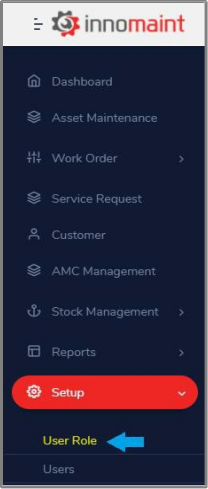
1. In the left side menu bar click on ‘User Role’ in setup menu.
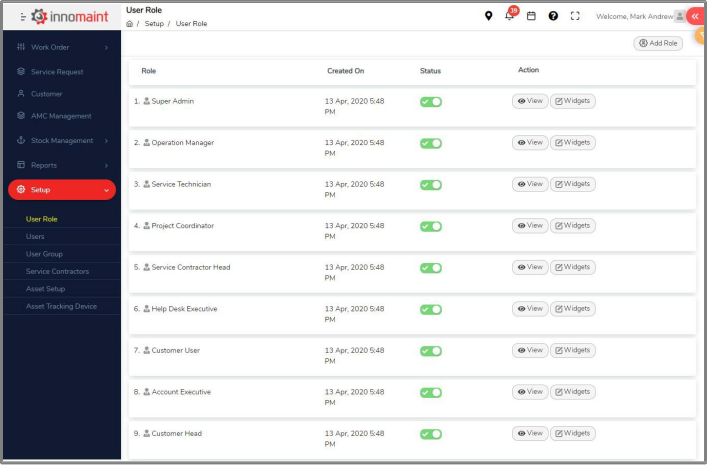
2. You will be directed to ‘User Role’ page where you will find the predefined system user role and its privileges. Check out the below screen.
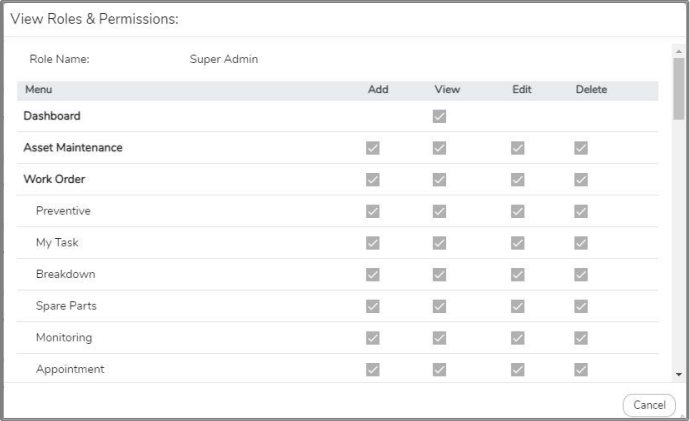
3. Click on the View button available in the action column to view the privileges of user role (Check out the below screen shot).
4. To create a new role click on Add role button and the below screen appears.
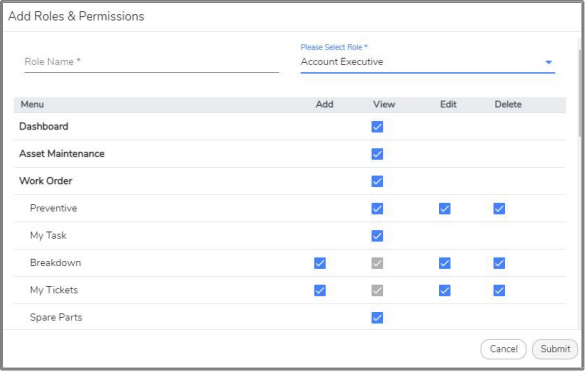
5. New user role can be created by inheriting predefined role and can customize the permissions (if needed).
Step 2: User Creation
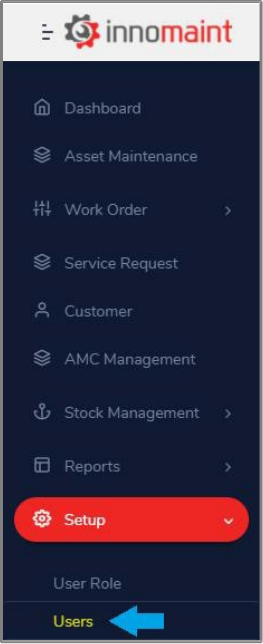
1. In the left side menu bar click on ‘Users’ in setup menu.
2. You will be directed to ‘Users’ page as shown below.
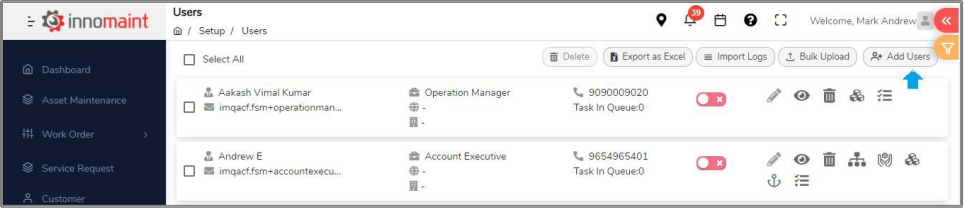
3. Click on Add users button to create a new user. The below screen appears:
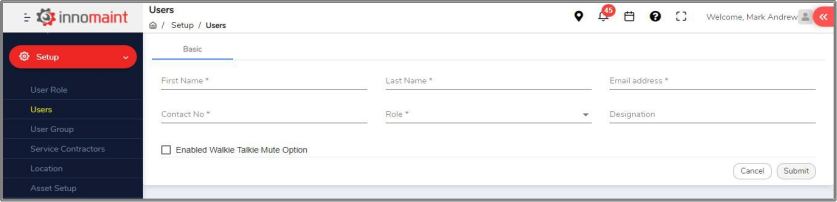
4. Provide first name, last name, email address, contact number, role which are mandatory.
5. Predefined roles will be listed in ‘Role’ drop-down.
6. Privileges will be provided to the user based on the selected role, where each and every role has various privileges.
7. The user will be created once the submit button is clicked and the respective user will receive email notification for activation.
8. Once activation is done, user can login to the application using their email address and password.
9. Assets can be mapped to the customer after the user creation.
Step 3: Spare Categorization
1. Click on ‘Asset Setup’ in the left side menu bar, to create spare category & sub-category.
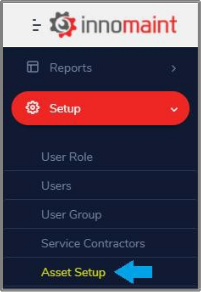
2. Click on spare category tab and you will find button. Click on it will allow to create spare category.
3. Click on spare sub-category tab and you will find button. Click on it will allow to create spare sub-category.
4. Created spare parts category and spare parts sub-category will be available in spare parts stock page.

Step 4: Spare parts creation
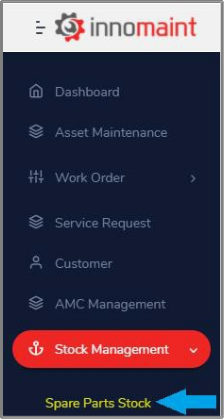
1. Click on ‘Spare Parts Stock’ in ‘Stock Management’ in the left side menu bar, where you will be directed to ‘Spare Parts Stock’ screen to create spare parts.
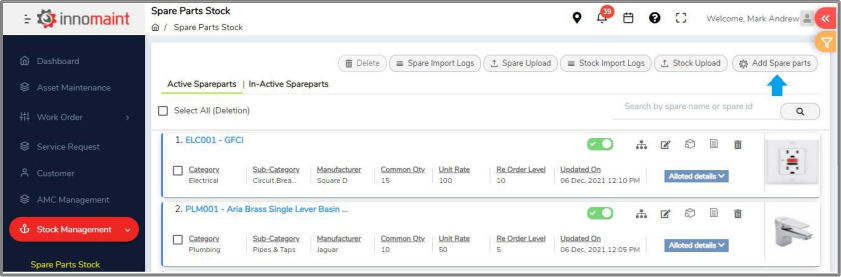
2. Click on ‘Add Spare Parts’ button to create new spare parts.
3. The below screen appears on click of ‘Add spare parts’ button. Provide all the data that are marked as mandatory *.
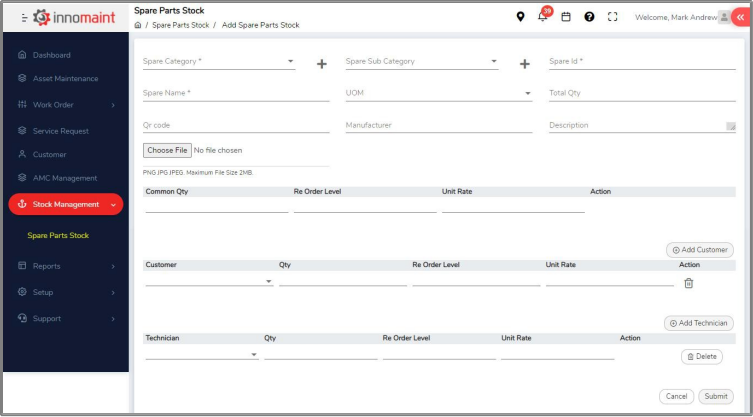
4. Click on Submit button will create new spare part.
STEP 5: Asset Creation
1. You can create manufacturer, category and sub-category prior to asset creation through ‘Asset Setup’ screen.
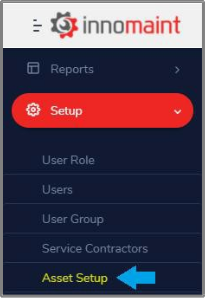
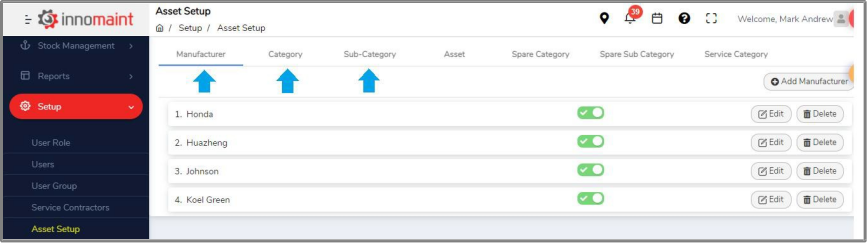
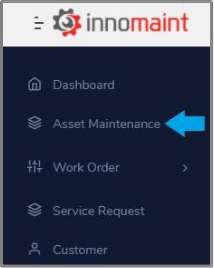
2. Click on ‘Asset Maintenance’ in the left side menu bar, to create new asset.
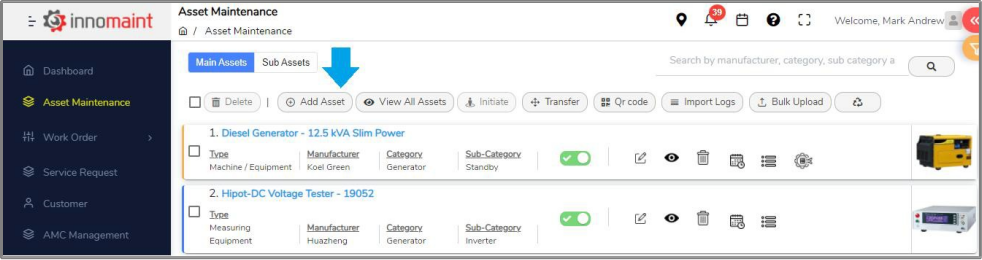
3. Click on Add Asset button to create new asset.
4. Provide the asset details which are marked as *.
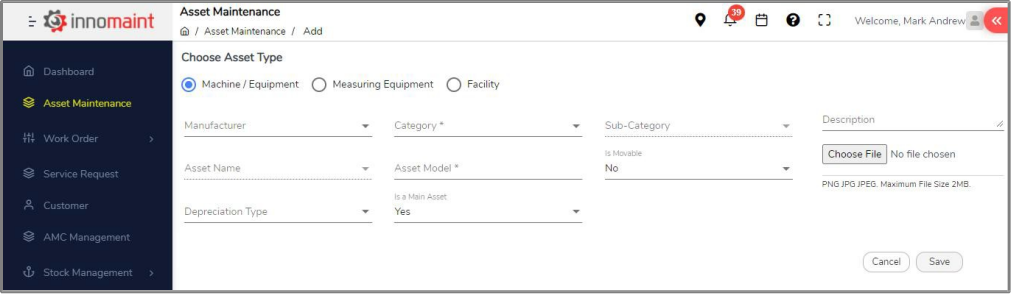
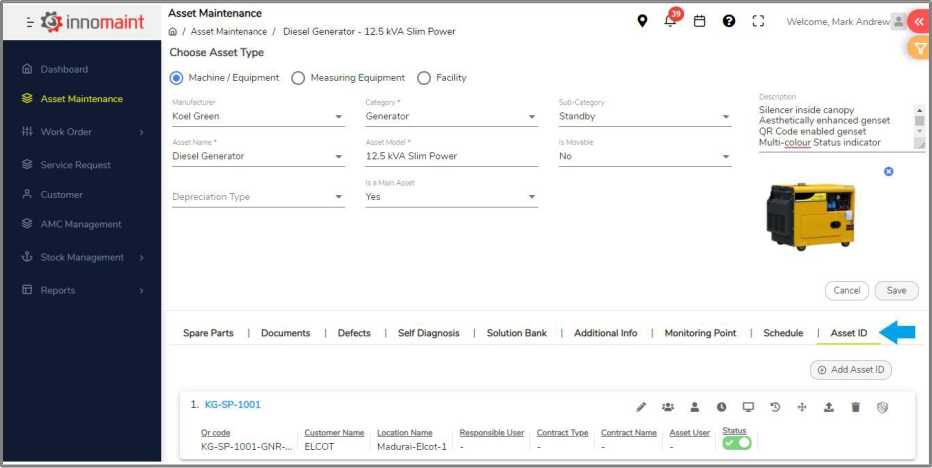
1. Click on save will create the given asset details and request to provide the following additional details:
i. Spare Parts - You can add spare parts related to asset model.
ii. Documents - You can upload asset documents like user guide, trouble shooting.
iii. Solution Bank - You can provide solution details of a defects related to asset.
iv. Additional Info - You can define additional information required for the asset.
v. Asset Id - The following details can be defined in asset id tab: Asset Id, Asset Number, QR Code, Year of manufacturing, Capacity Rating, Installation Date, Criticality, Customer Name, Area Name.
Step 6: Customer Creation
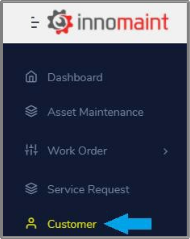
1. In the left side menu bar click ‘Customer’ in setup menu.
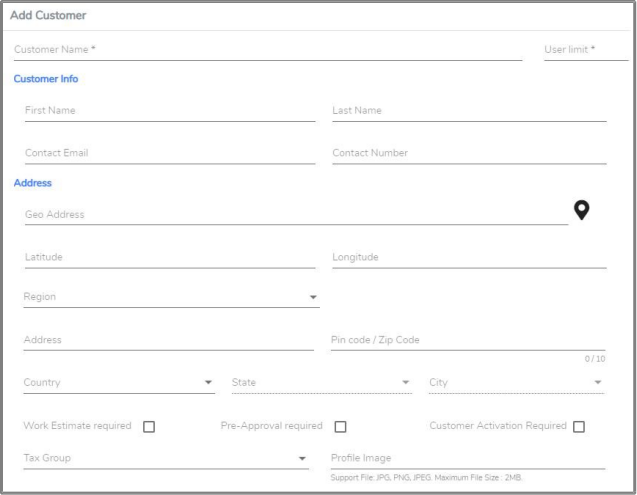
2. A pop-up will be opened on click of Add customer button to create a new customer.
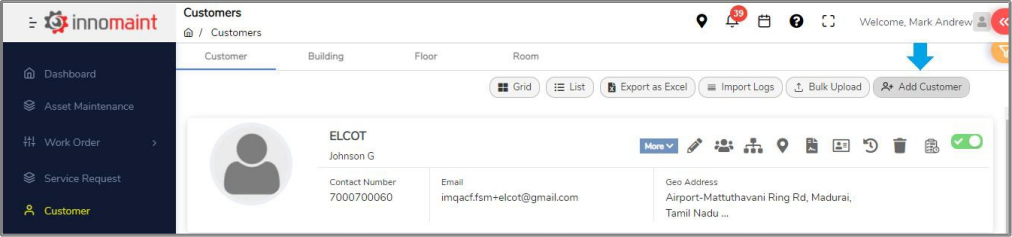
3. The below screen appears to create a new customer.
4. Provide customer name which is mandatory and other required details.
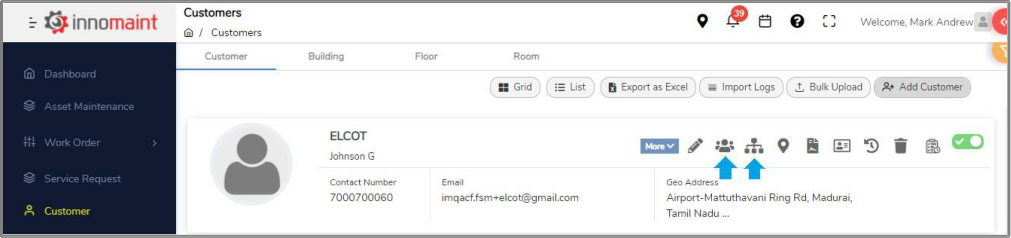
5. Customer asset mapping and customer user mapping can be done using the icons shown below.
Step 7: Schedule Creation
1. In the left side menu bar click ‘Asset Maintenance’.
2. Schedules can be created for an asset’s model, which will be applicable for its all Asset Ids.

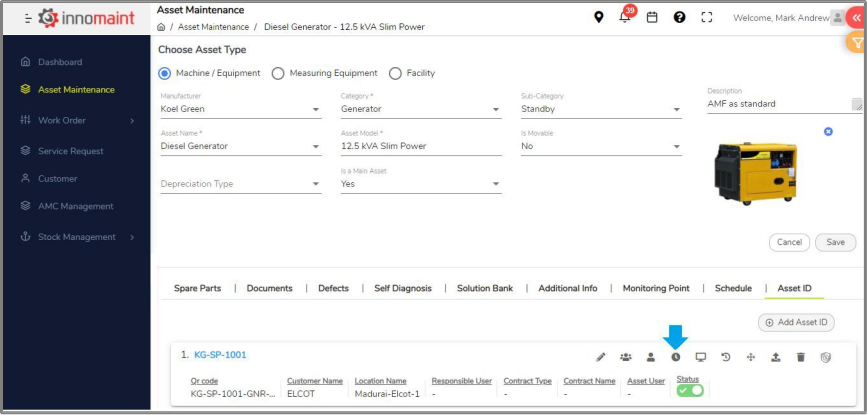
3. Schedule can also be created for an individual asset id. Go to ‘Asset Maintenance >> Add/Edit Asset Maintenance >> Asset Id’. The below screen appears and using icon we can create schedule for individual asset id.
4. Schedule can be created based on frequency or occurrences or end by date.
5. Schedule can be prioritized and task can be added to it usingbutton. Check out the below screen shot.
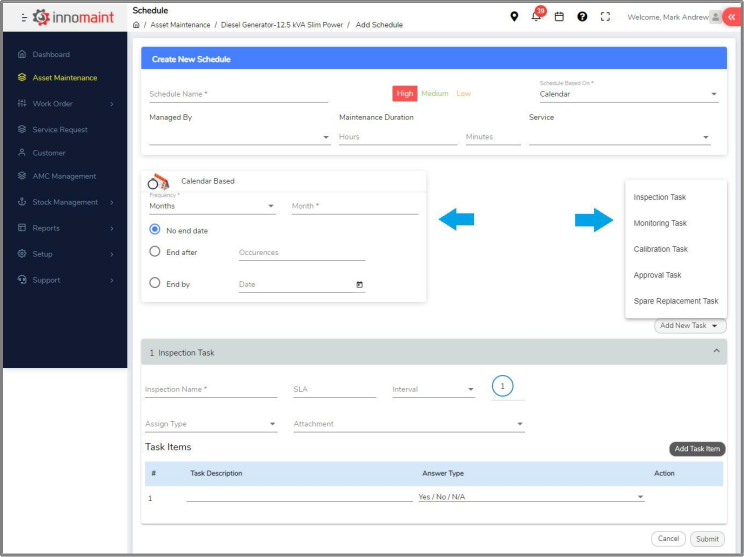
6. Created schedules will be listed in ‘Schedule’ page, which can be navigated through icon available in asset maintenance page and Asset Id tab.
Step 8: Schedule Initiation
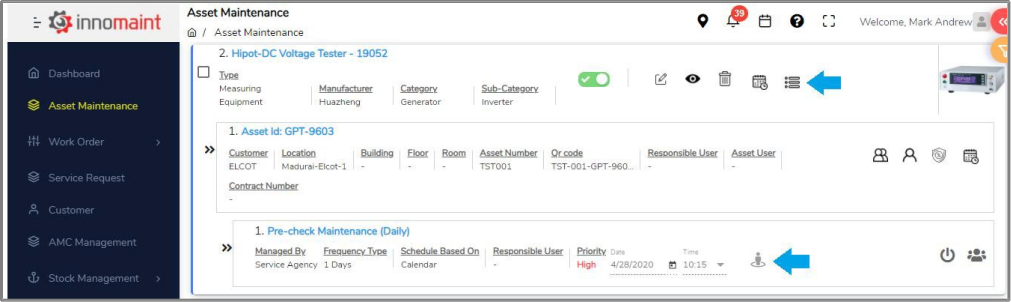
1. Click on icon available in Asset Maintenance page where you will fine the asset id lists.
2. Click on icon to initiate the schedule configured for each asset.
3. Schedule can be initiated by providing date and time. Check out the below screen shot.
Step 9: Assign and re-assign schedule
1. In the left side menu bar click ‘Preventive’ in ‘Work Order’ menu.
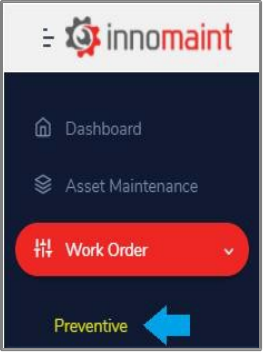
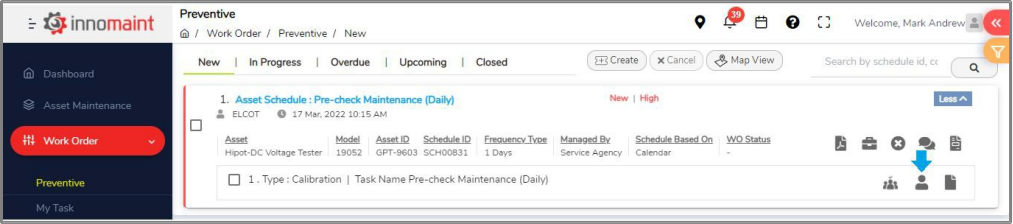
2. Initiated schedules will be listed in ‘New’ and ‘Upcoming’ tabs.
3. Work in progress schedules and completed schedules will be listed in ‘In-progress’ and ‘Closed’ tabs respectively.

4. New and upcoming schedules can be assign/reassign to engineers using icon. Check out the below screen shot.
Step 10: Accept/reject ppm tasks
1. Service technician should accept the assigned PPM tasks through mobile app.
2. Download Innomaint mobile app from play-store.
3. Login as service technician. Below screen appears.
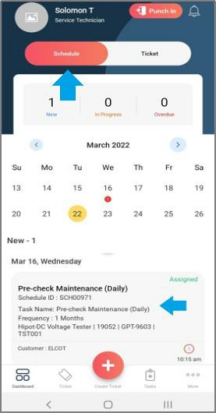
4. Click on ppm task which is listed in ‘Schedule’ page as shown in the above screen. It will direct to details page where the technician can accept or reject the ppm task as shown below.
Step 11: Raise Breakdown Tickets
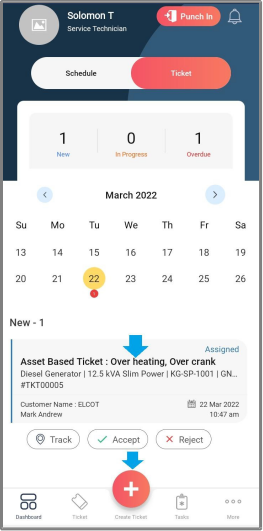
1. Download Innomaint mobile app from play-store.
2. Login as customer and click on ‘Tickets’ tab where the existing created tickets will be listed.
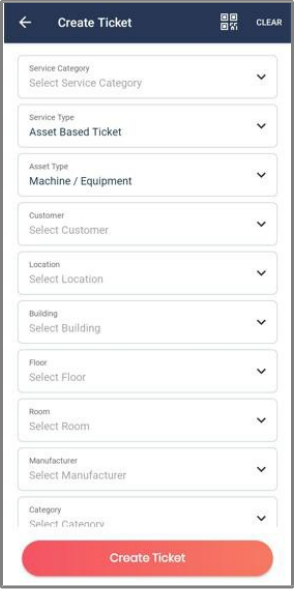
3. To create a ticket click on button and the below screen appears:
Step 12: Assign/Re-assign breakdown tickets
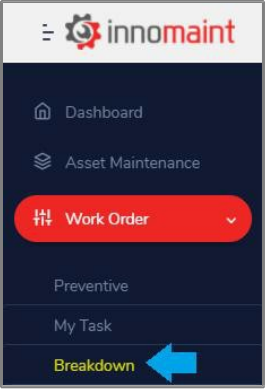
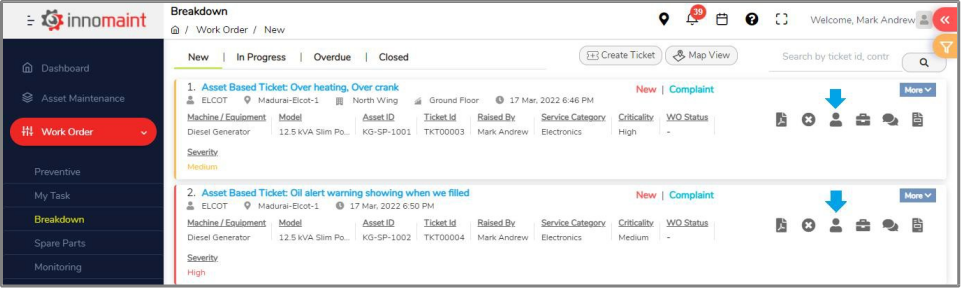
1. In the left side menu bar click ‘Breakdown’ in ‘Work Order’ menu.
2. Tickets raised by user through mobile app will be listed in ‘New’ tab.
3. Work in progress and completed tickets will be listed in ‘In-progress’ and ‘Closed’ tabs respectively.
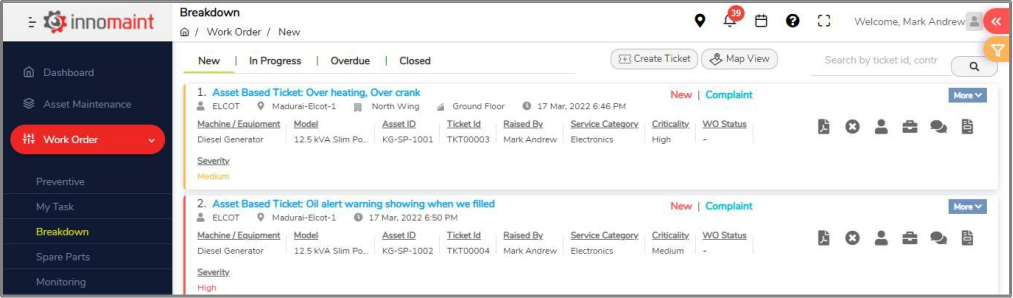
4. New tickets can be assign/reassign to engineers using icon. Check out the below screen shot.
Step 13: Accept/reject breakdown tickets
1. Service technician should accept the assigned breakdown tickets through mobile app.
2. Download Innomaint mobile app from play-store.
3. Login as service technician. Below screen appears.
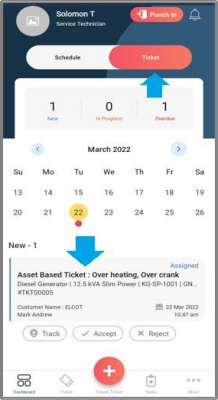
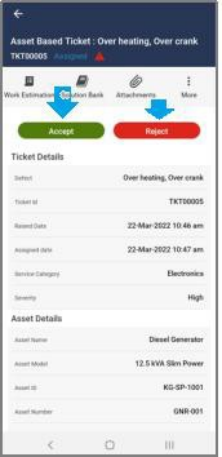
4. Click on breakdown task which is listed in ‘Ticket’ page as shown in the above screen. It will direct to details page where the technician can accept or reject the assigned ticket as shown below.
Step 14: Bulk Upload
1. Bulk upload can be done for the following, through the template available in respective screens:
a) Customers
b) Users
c) Assets
d) Schedules
e) Spare Parts
Step 15: Reports
In the left side menu bar click ‘Reports’.
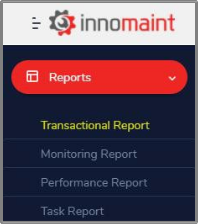
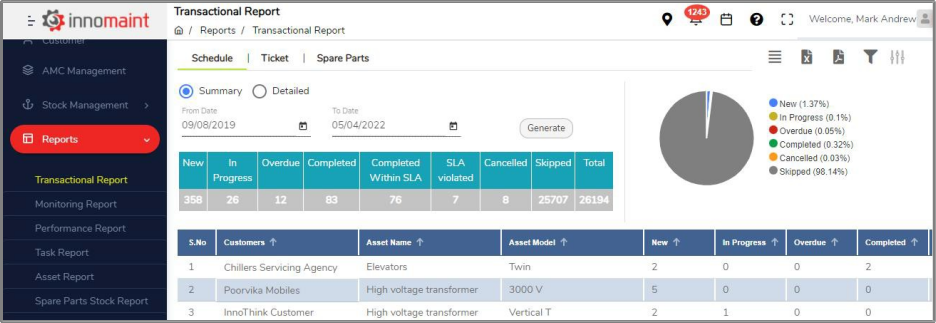
1. TRANSACTION REPORT
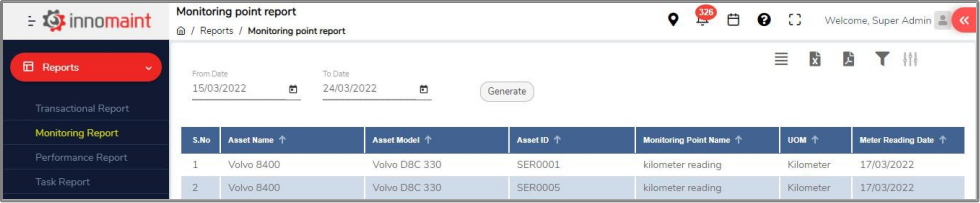
2. MONITORING POINT REPORT
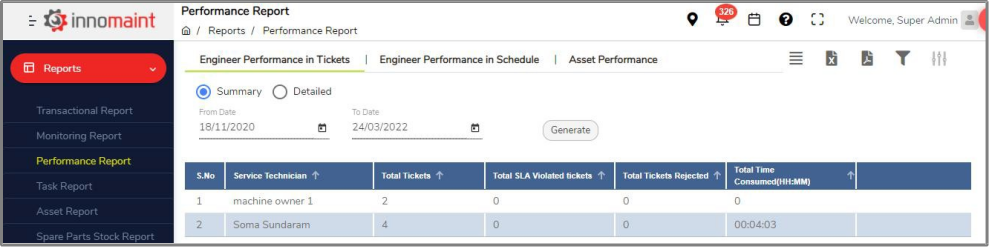
3. PERFORMANCE REPORT
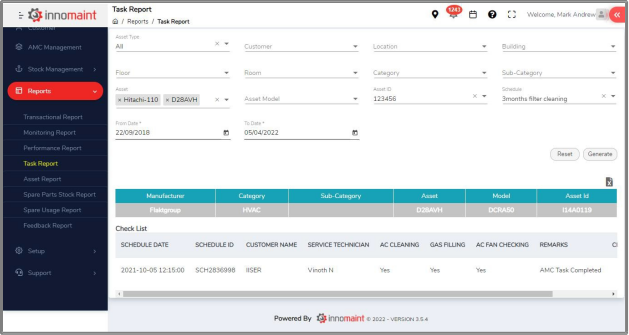
4. TASK REPORT
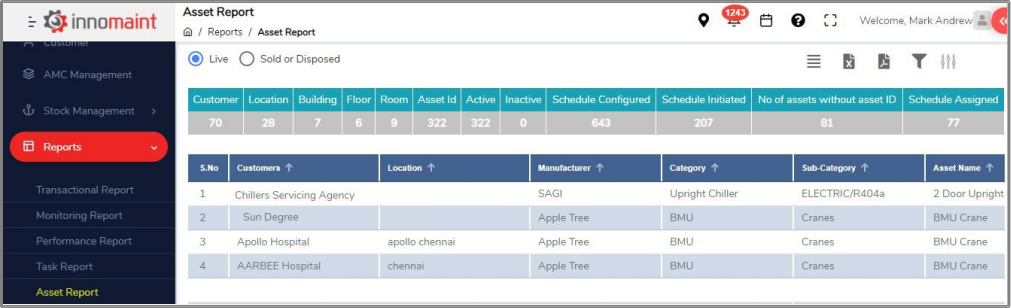
5. ASSET REPORT
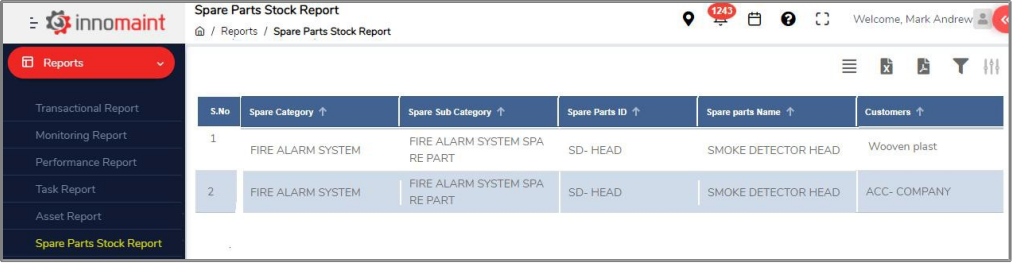
6. SPARE PARTS STOCK REPORT
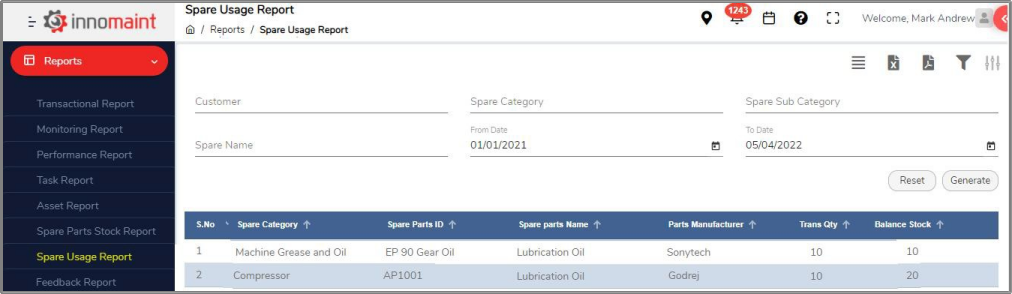
7. SPARE USAGE REPORT